Tóm gọn: vào Cài đặt trong panel, kéo xuống mục MÁY ĐANG ĐĂNG NHẬP: thấy hết những nơi đang đăng nhập tài khoản của bạn, bấm Đăng xuất ở máy nào thì máy đó ra khỏi tài khoản. Thấy máy lạ: đổi mật khẩu trước, đăng xuất sau.
In short: open Settings in the panel and scroll to SIGNED-IN DEVICES: you see every place your account is signed in, and pressing Sign out on a device removes it from the account. A device you do not recognize: change the password first, sign out after.
01Mục này để làm gìWhat this is for
Một tài khoản Pixelius có thể đăng nhập ở nhiều nơi cùng lúc: panel Photoshop, trang web, app Pixelius, Pixelius Tools. Mục MÁY ĐANG ĐĂNG NHẬP cho bạn thấy hết các nơi đó và đăng xuất bất cứ máy nào từ xa.
Nên dùng khi:
- Quên đăng xuất ở máy tiệm, máy cũ, máy mượn.
- Bán máy, đổi máy, nhân viên nghỉ việc.
- Thấy một máy lạ trong danh sách.
Có từ panel 3.127.2 (panel CEP: 1.51.2), cả Windows lẫn Mac. Panel của bạn cũ hơn thì tải bản mới, hoặc bấm cập nhật khi panel báo có bản mới.
One Pixelius account can be signed in at several places at once: the Photoshop panel, the website, the Pixelius app and Pixelius Tools. SIGNED-IN DEVICES shows all of them and lets you sign out any device remotely.
Use it when:
- You forgot to sign out on a shop computer, an old computer or a borrowed one.
- You sell or replace a computer, or an employee leaves.
- You see a device you do not recognize in the list.
Available from panel 3.127.2 (CEP panel: 1.51.2), on Windows and Mac. If yours is older, download the new version, or press update when the panel offers it.
02Xem các máy đang đăng nhậpSee your signed-in devices
- Mở panel Pixelius trong Photoshop, bấm Cài đặt ở góc trên bên phải.
- Kéo xuống mục MÁY ĐANG ĐĂNG NHẬP, ngay trên mục BẢO MẬT.
- Bấm Tải lại nếu muốn cập nhật danh sách.
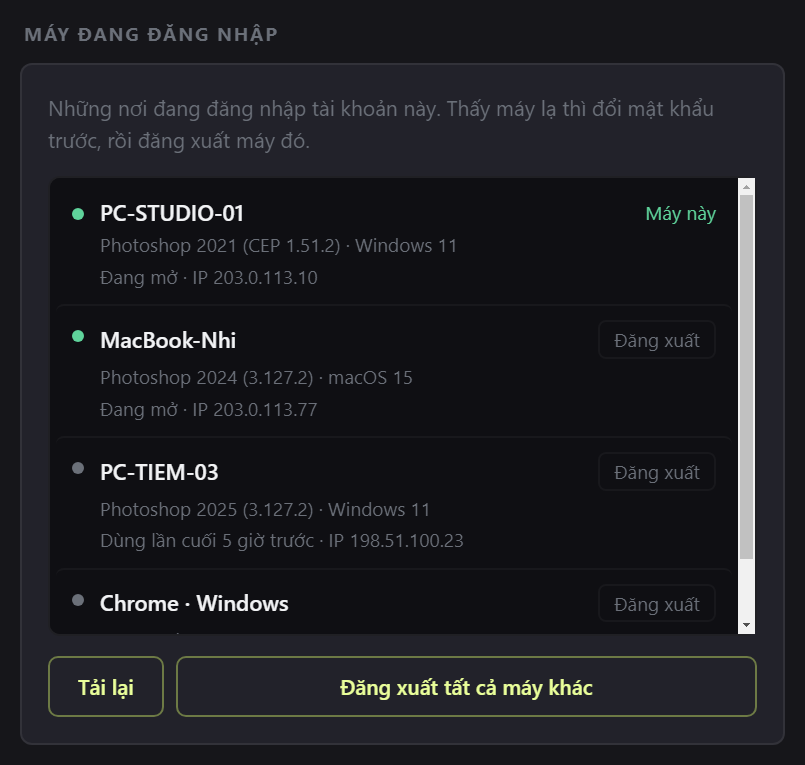
Mỗi máy là một dòng:
| Trên dòng ghi | Nghĩa là |
|---|---|
| Tên máy, ví dụ PC-TIEM-03 | Tên máy tính. Máy chưa báo tên thì hiện tên người dùng Windows / Mac, trình duyệt hoặc hệ điều hành |
| Máy này | Máy bạn đang ngồi. Dòng này không có nút Đăng xuất |
| Photoshop 2025 (3.127.2) · Windows 11 | Đang dùng phần mềm nào, số bản và hệ điều hành |
| Đang mở, chấm xanh | Máy đó vừa dùng tài khoản trong khoảng 90 giây gần đây |
| Bridge đang bật | Pixelius Bridge trên máy đó đang chạy |
| Dùng lần cuối 5 giờ trước | Lần gần nhất máy đó dùng tài khoản |
| IP 203.0.113.10 | Địa chỉ mạng của lần dùng gần nhất |
- Open the Pixelius panel in Photoshop and press Settings at the top right.
- Scroll down to SIGNED-IN DEVICES, just above SECURITY.
- Press Reload to refresh the list.
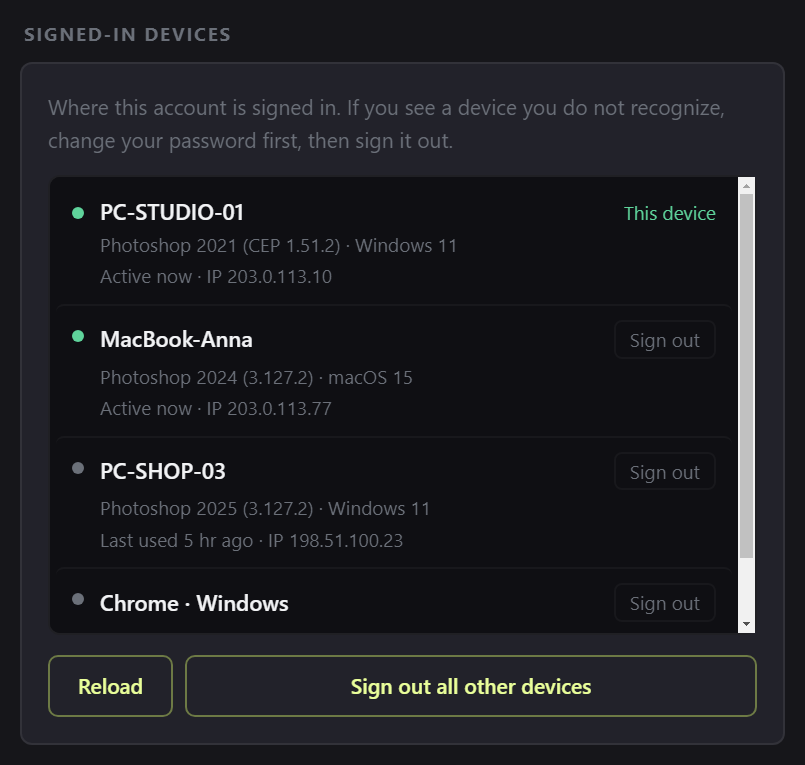
Each device is one line:
| On the line | Meaning |
|---|---|
| Computer name, e.g. PC-SHOP-03 | The computer’s name. A device that has not reported one shows the Windows / Mac user name, the browser or the operating system |
| This device | The computer you are using. This line has no Sign out button |
| Photoshop 2025 (3.127.2) · Windows 11 | The software in use, its version and the operating system |
| Active now, green dot | That device used the account within the last 90 seconds or so |
| Bridge is running | Pixelius Bridge is running on that device |
| Last used 5 hr ago | The last time that device used the account |
| IP 203.0.113.10 | The network address of that last use |
03Đăng xuất một máySign out one device
- Ở dòng của máy đó, bấm Đăng xuất.
- Nhập mật khẩu Pixelius vào ô vừa hiện. Bấm Hiện nếu muốn xem chữ đang gõ.
- Bấm Đăng xuất. Panel báo “Đã đăng xuất khỏi …” và dòng đó biến mất.
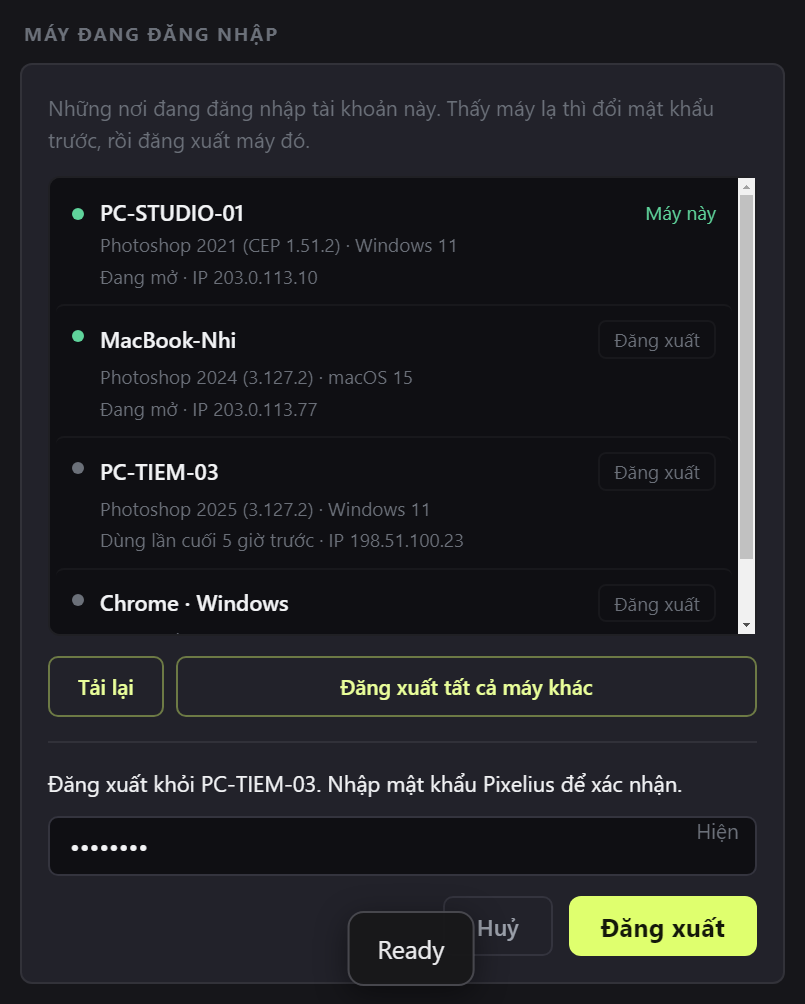
Đổi ý thì bấm Huỷ. Nhập sai mật khẩu 5 lần thì phải chờ 10 phút.
- On that device’s line, press Sign out.
- Enter your Pixelius password in the box that appears. Press Show to see what you type.
- Press Sign out. The panel says “Signed out of …” and the line disappears.
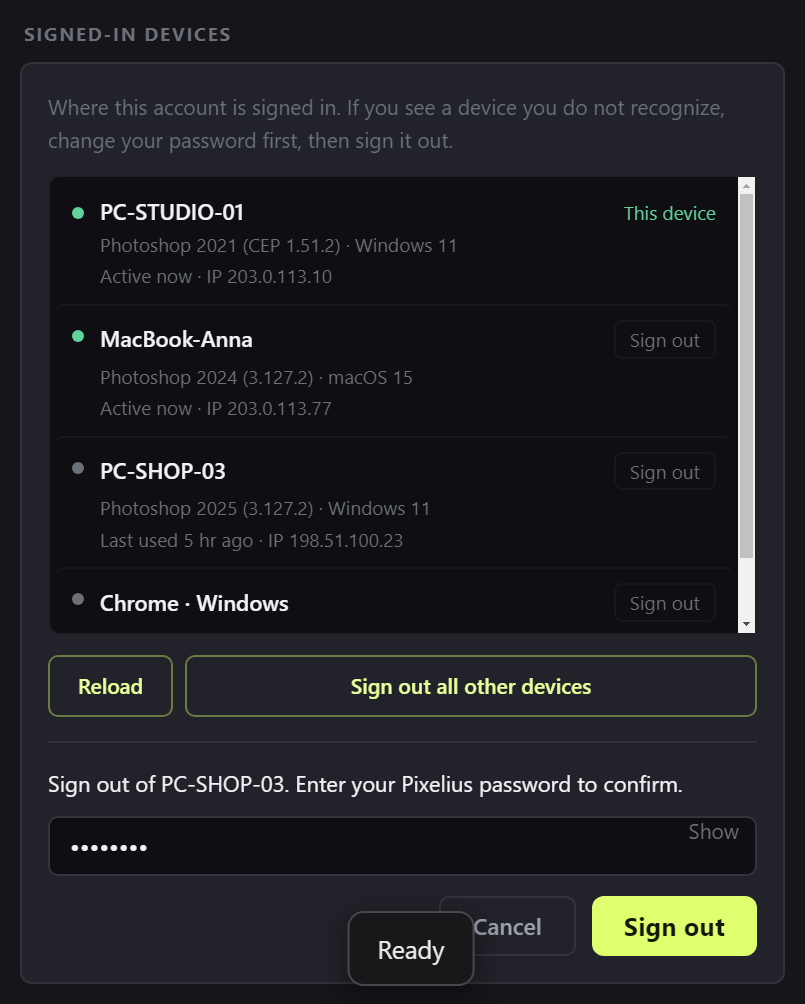
Changed your mind? Press Cancel. After 5 wrong passwords you have to wait 10 minutes.
04Đăng xuất tất cả máy khácSign out all other devices
Dùng khi bạn không chắc máy nào là lạ. Chỉ máy bạn đang ngồi còn đăng nhập.
- Bấm Đăng xuất tất cả máy khác dưới danh sách.
- Nhập mật khẩu Pixelius.
- Bấm Đăng xuất.
Nút này đăng xuất cả những máy đăng nhập từ trước mà chưa mở lại, nên không thấy trong danh sách.
Use this when you are not sure which device is the strange one. Only the computer you are using stays signed in.
- Press Sign out all other devices below the list.
- Enter your Pixelius password.
- Press Sign out.
This button also signs out devices that signed in earlier and have not been opened since, so they do not appear in the list.
05Tài khoản Google / Apple chưa có mật khẩuGoogle / Apple accounts without a password
Tài khoản chỉ đăng nhập bằng Google hoặc Apple thì chưa có mật khẩu Pixelius. Bạn đặt mật khẩu ngay trong khung đăng xuất:
- Bấm Đăng xuất ở dòng của máy, hoặc Đăng xuất tất cả máy khác.
- Nhập Mật khẩu mới (từ 6 ký tự) rồi Nhập lại.
- Bấm Đặt và đăng xuất. Mật khẩu được lưu và máy kia bị đăng xuất luôn.
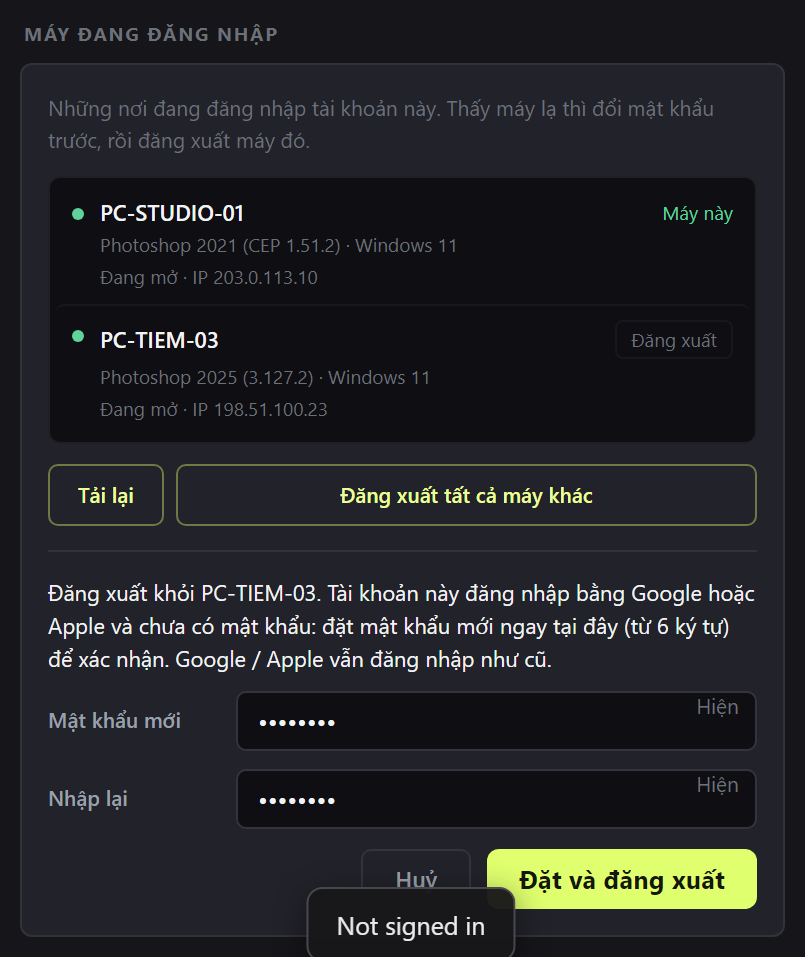
Lần sau chỉ cần nhập mật khẩu này. Google / Apple vẫn đăng nhập như cũ. Pixelius gửi email báo mật khẩu vừa được đặt.
Panel báo “Tài khoản này đã có mật khẩu rồi” thì mật khẩu đã được đặt từ trước: hãy nhập mật khẩu đó. Không phải bạn đặt thì làm theo mục Thấy máy lạ thì làm gì.
An account that only signs in with Google or Apple has no Pixelius password yet. You set one right in the sign-out box:
- Press Sign out on the device’s line, or Sign out all other devices.
- Type a New password (at least 6 characters), then Confirm it.
- Press Set and sign out. The password is saved and the other device is signed out right away.
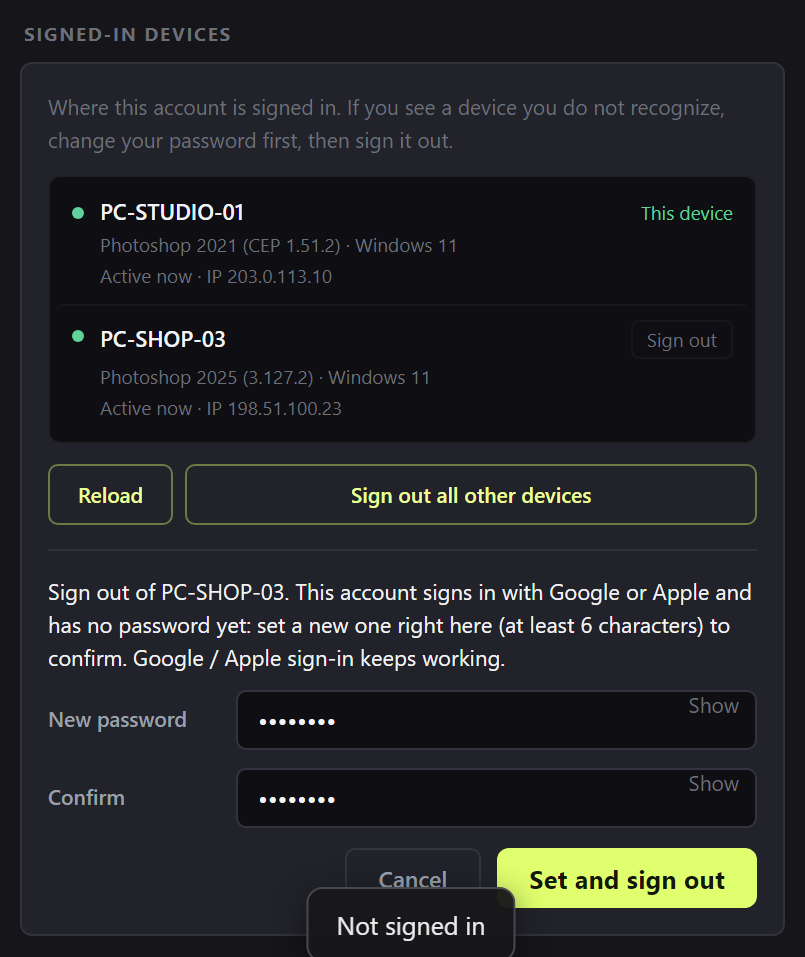
Next time just enter this password. Google / Apple sign-in keeps working. Pixelius emails you that a password was set.
If the panel says “This account already has a password”, one was set earlier: enter that one. If it was not you, follow A device you do not recognize.
06Máy bị đăng xuất sẽ thấy gìWhat the signed-out device sees
| Nơi đang đăng nhập | Sẽ thấy |
|---|---|
| Panel Photoshop đang mở | Khoảng 15 giây sau tự về màn đăng nhập, ghi “Tài khoản trên máy này vừa được đăng xuất từ một máy khác.” Panel bản cũ chỉ về màn đăng nhập |
| Panel Photoshop đang đóng | Lần mở sau phải đăng nhập lại |
| Trang web, app Pixelius, Pixelius Tools | Lần dùng kế tiếp phải đăng nhập lại |
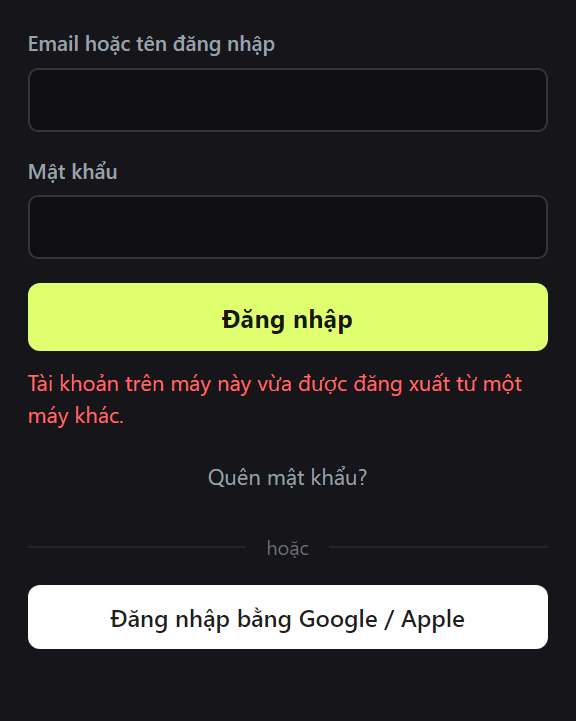
Máy đó đang chạy dở ảnh thì panel dừng ở màn đăng nhập. Nên chờ chạy xong rồi hãy đăng xuất.
| Signed in at | What it sees |
|---|---|
| Photoshop panel, open | After about 15 seconds it returns to the sign-in screen and says “This device was signed out from another device.” Older panels only return to the sign-in screen |
| Photoshop panel, closed | Has to sign in again the next time it opens |
| Website, Pixelius app, Pixelius Tools | Has to sign in again the next time it is used |
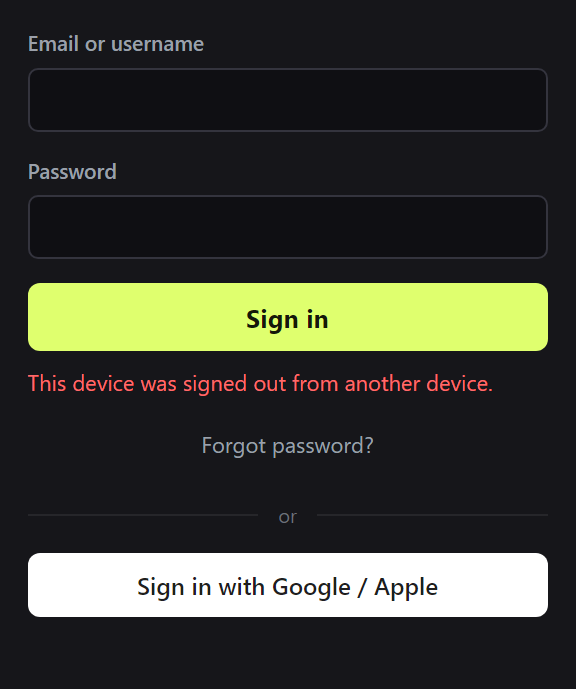
If that device is processing a photo, its panel stops at the sign-in screen. Better wait until it finishes.
07Thấy máy lạ thì làm gìA device you do not recognize
Làm đúng thứ tự: đổi mật khẩu trước, đăng xuất sau.
- Đổi mật khẩu Pixelius ở mục BẢO MẬT. Quên mật khẩu thì bấm Quên mật khẩu? ở màn đăng nhập, liên kết gửi về email của bạn.
- Mở lại Cài đặt, bấm Đăng xuất tất cả máy khác, nhập mật khẩu mới.
- Nếu bạn đăng nhập bằng Google hoặc Apple, đổi cả mật khẩu Google / Apple.
- Thấy điểm bị trừ lạ thì bấm Hỗ trợ trong panel và nhắn cho Pixelius.
Đổi mật khẩu không tự đăng xuất máy nào, nên phải làm tiếp bước 2. Đăng xuất trước thì người lạ vẫn vào lại được bằng mật khẩu cũ.
Do it in this order: change the password first, sign out after.
- Change your Pixelius password in the SECURITY section. Forgot it? Press Forgot password? on the sign-in screen; a link is sent to your email.
- Open Settings again, press Sign out all other devices and enter the new password.
- If you sign in with Google or Apple, change the Google / Apple password too.
- If points were spent and it was not you, press Support in the panel and tell us.
Changing the password does not sign any device out, so step 2 is still needed. If you sign out first, the other person can get back in with the old password.
08Câu hỏi thường gặpFrequently asked questions
Đăng xuất từ xa có mất điểm không?
Không. Điểm thuộc tài khoản, không thuộc máy.
Có đăng xuất tài khoản ChatGPT, Gemini trong Bridge không?
Không. Chỉ đăng xuất tài khoản Pixelius.
Vì sao một máy không có tên?
Máy đó dùng panel bản cũ, hoặc Pixelius Bridge dưới 3.29.0. Cập nhật panel và Bridge rồi mở lại.
Vì sao có nhiều dòng “Chrome · Windows”?
Trang web không nhận ra máy, nên mỗi lần đăng nhập web là một dòng. Dòng cũ tự hết trong 30 ngày, muốn xoá ngay thì bấm Đăng xuất ở dòng đó.
Máy tôi đang đăng nhập mà không thấy trong danh sách?
Máy đó chưa mở Pixelius kể từ khi có tính năng này. Mở lên một lần là hiện.
IP lạ có phải người khác không?
Chưa chắc. Đổi wifi, dùng 4G, VPN hoặc nhà mạng cấp IP mới đều làm IP đổi. Hãy xem tên máy và giờ dùng.
Hiện “Không tải được danh sách máy”?
Kiểm tra mạng rồi bấm Tải lại.
Do I lose points when I sign a device out remotely?
No. Points belong to the account, not to the device.
Does it sign out the ChatGPT or Gemini accounts in Bridge?
No. Only the Pixelius account.
Why does a device have no name?
It runs an older panel, or Pixelius Bridge older than 3.29.0. Update the panel and Bridge, then open them again.
Why are there several “Chrome · Windows” lines?
The website cannot recognize the computer, so each web sign-in is one line. Old lines disappear within 30 days; to remove one now, press Sign out on it.
My computer is signed in but not in the list?
It has not opened Pixelius since this feature was added. Open it once and it appears.
Does an unfamiliar IP mean someone else?
Not necessarily. Changing Wi-Fi, using 4G or a VPN, or a new IP from your provider all change it. Look at the computer name and the time of use.
It says “Could not load the device list”?
Check your connection, then press Reload.